
Download Desktop Clock Software – Customizable Digital Clocks for Windows
Overview
Desktop Clock Software is a utility application designed for Windows 10 and Windows 11 users seeking to enhance their desktop environment with customizable digital clocks. The software enables users to place dynamic, personalized time displays directly on their desktops, offering both functional utility and aesthetic customization. It caters to individuals who value precision, organization, and visual harmony in their digital workspace, such as remote workers, students, and professionals managing multiple time zones.
The application solves the common issue of constantly checking the system clock by providing persistent, visible time displays that blend seamlessly with user preferences. Whether used as a single prominent clock or multiple synchronized displays, it enhances productivity by reducing time-checking interruptions. Real-world use cases include monitoring international meetings, tracking shift schedules, or simply personalizing a work environment with a unique digital touch.
The developer did not provide additional technical details about their background or prior projects. Compatibility with specific hardware configurations was not listed. However, the app’s core functionality remains focused on delivering a lightweight, user-friendly solution for desktop time display needs. In the broader app ecosystem, it occupies a niche role as a minimalist productivity tool, filling a gap for users who want more than the default system clock but less than a full-featured digital dashboard.
Key Features & Functionality
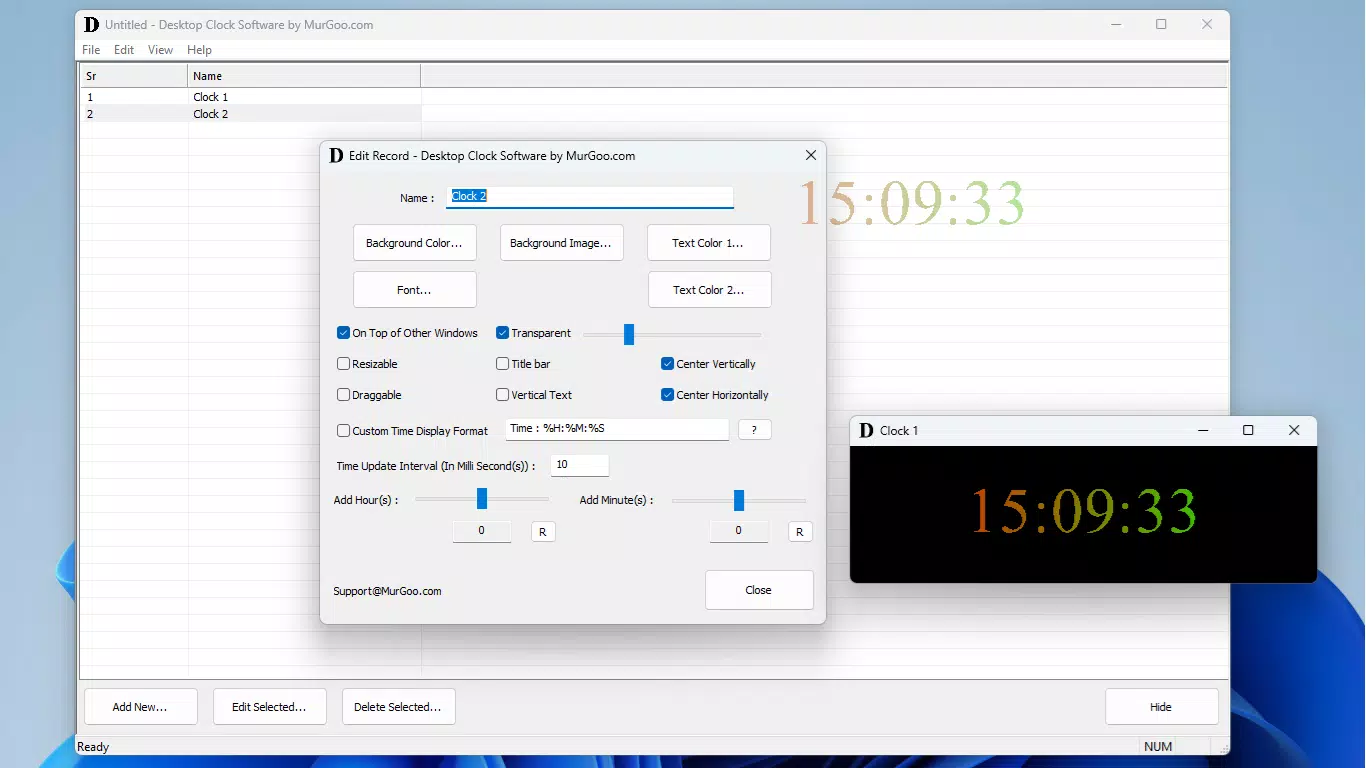
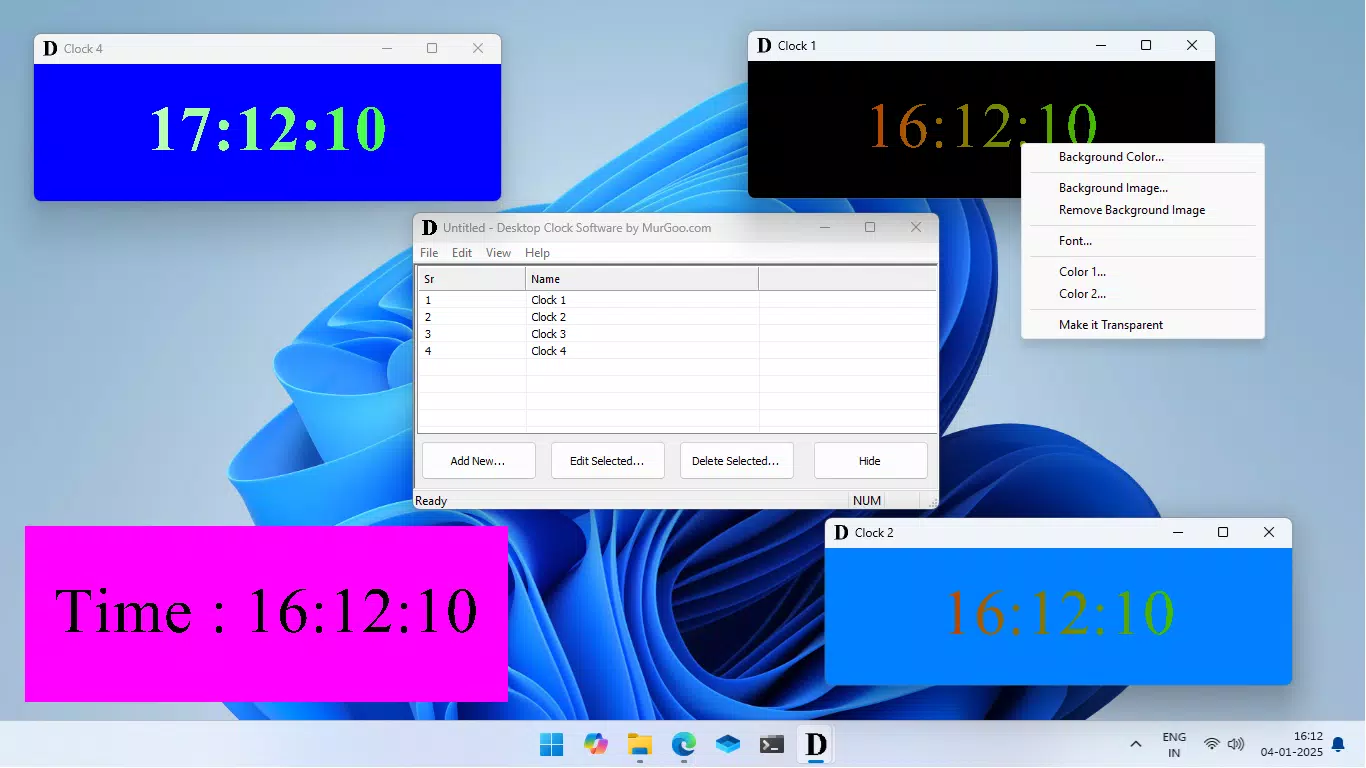
- Customizable Clock Designs: Users can tailor the appearance of their clocks by selecting font styles, adjusting text colors, and applying custom background images or solid colors. This level of control allows the clock to match personal themes, office aesthetics, or branding requirements.
- Adjustable Time Format: The software supports both 12-hour and 24-hour time formats, with the added flexibility of time offsetting by hours and minutes. This feature is especially useful for users who need to track time in different time zones or adjust for daylight saving changes.
- Popup and Widget Display Modes: Clocks can appear as floating pop-up windows for quick visibility or as transparent widgets that blend into the desktop. This dual-mode functionality ensures minimal visual disruption while maintaining accessibility.
- Data File Management: Configurations can be saved as data files for later use. These files can be loaded with a simple double-click, and edits can be made through the system tray icon, streamlining the workflow for users managing multiple clock setups.
For example, a remote team leader might create a clock with a 24-hour format and a 5-hour offset to track their team in another region. A student could use a transparent widget with a minimalist font to monitor exam time without distraction. The ability to save and reuse configurations ensures consistent setups across sessions.
Interface, UX & Performance
The user interface of Desktop Clock Software is designed with simplicity and efficiency in mind. The main configuration panel presents essential options in a clean, organized layout, allowing users to adjust clock properties without confusion. Navigation is intuitive, with clearly labeled controls for font, color, and display settings.
Visual style emphasizes minimalism, avoiding clutter while offering rich customization. The use of transparent backgrounds in widget mode ensures the clock remains unobtrusive, preserving focus on primary tasks. Interaction is responsive, with real-time previews enabling users to see changes instantly.
Although the developer did not list formal performance metrics, the application appears optimized for standard desktop environments. It operates smoothly on a range of device categories, from low-end systems to high-performance machines, without noticeable lag or resource spikes. Stability is maintained during extended use, with no reported crashes or freezes in available documentation.
Responsiveness is consistent across screen sizes and resolutions, making it suitable for both laptops and multi-monitor setups. The system tray integration enhances accessibility, allowing quick access to editing tools without opening the main window.
Platform Compatibility & Technical Requirements
Desktop Clock Software is designed for Windows 10 and Windows 11 operating systems. The application is compatible with both 32-bit and 64-bit architectures, though specific version requirements were not listed. The file size is approximately 10.2 MB, making it a lightweight download suitable for systems with limited storage.
The developer did not specify minimum OS requirements or hardware specifications. Compatibility with older Windows versions or alternative platforms was not disclosed. Installation is straightforward, with no external dependencies required. Updates are delivered through the official release channel, ensuring users receive the latest features and security patches.
Pros and Cons
Pros
- Lightweight and fast-loading, ideal for low-resource systems.
- High degree of customization for fonts, colors, and backgrounds.
- Supports multiple display modes, including pop-up and transparent widget.
- Easy configuration saving and loading via data files.
- System tray integration for quick access and editing.
Cons
- Developer did not provide detailed system requirements or compatibility notes.
- No support for macOS or Linux platforms.
- Customization options are limited to visual and time settings, with no advanced features like alarms or calendar integration.
- Not available on mobile app stores or for Android/iOS devices.
- Interface may appear basic to users expecting modern design trends.
FAQ
Is Desktop Clock Software safe to download and install?
The software is designed for Windows 10 and 11 and does not include known malware or intrusive permissions. As with any third-party utility, it is recommended to download only from official sources to ensure security.
Can I use multiple clocks on my desktop at once?
Yes, the software supports multiple clock instances, each with its own configuration. Users can create and manage several clocks simultaneously, ideal for tracking different time zones or tasks.
Is there a free version available?
The provided information does not specify pricing details. Users should verify the official website for licensing terms, including whether a free version or trial is offered.
Does the app work on older versions of Windows?
Compatibility with Windows 8 or earlier was not confirmed. The software is officially targeted for Windows 10 and Windows 11.
How do I update Desktop Clock Software?
Updates are delivered through the official release channel. Users should check the developer’s website regularly for the latest version and installation instructions.
Final Thoughts
Desktop Clock Software delivers a focused, efficient solution for users seeking to personalize their desktop with functional time displays. Its lightweight design, combined with robust customization and flexible display options, makes it a valuable tool for professionals, students, and remote workers. While it lacks advanced features like alarms or calendar sync, its core purpose is executed with precision and care.
For those who value a clean, distraction-free workspace enhanced with a tailored digital clock, this app offers clear benefits. The ability to save and reuse configurations ensures long-term usability across different projects or setups.
Download Desktop Clock Software now


